Connecting your phone to your Nissan’s Bluetooth can make every drive safer and more enjoyable. Imagine answering calls, playing music, or using your voice assistant without taking your hands off the wheel.
But if you’ve ever struggled to get your devices to sync, you’re not alone. This guide will walk you through simple, clear steps to connect your phone to Nissan Bluetooth quickly and hassle-free. Keep reading, and you’ll be ready to enjoy hands-free convenience on your next trip.
Credit: www.passportnissanva.com
Prepare Your Nissan Bluetooth System
Connecting your phone to Nissan Bluetooth starts with preparation. Getting your system ready makes the process simple and quick. Follow these steps to set up your Nissan Bluetooth system properly.
Preparation helps avoid connection issues. It ensures your car and phone communicate well. Let’s begin by checking compatibility.
Check Compatibility
Not all phones work with every Nissan Bluetooth system. Check if your phone supports Bluetooth connections. Look for the Bluetooth icon on your phone’s settings. Also, confirm your Nissan model supports Bluetooth pairing. Consult your car manual or Nissan website for details.
Turn On Bluetooth
Turn on Bluetooth on your phone first. This allows your phone to search for devices. Next, switch on your Nissan’s Bluetooth system. The system often powers on with the ignition. Some models have a Bluetooth button to activate the feature.
Access The Bluetooth Menu
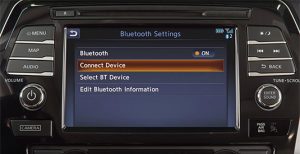
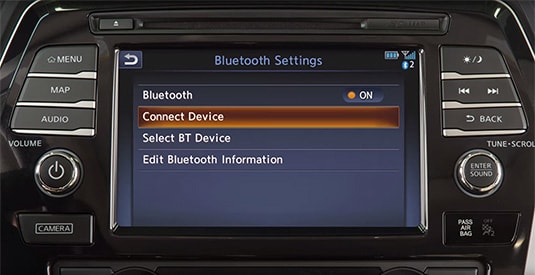
Find the Bluetooth menu on your car’s display screen. Use the center console or touchscreen to navigate. Select the Bluetooth or Phone option. This menu shows available devices and pairing options. Stay on this screen while pairing your phone.
Pair Your Device With Nissan Bluetooth
Pairing your device with Nissan Bluetooth lets you enjoy hands-free calls and music. This process is simple and takes just a few steps. Follow these clear instructions to connect your phone to your Nissan’s Bluetooth system quickly.
Enable Bluetooth On Your Phone
Start by opening the Settings app on your phone. Find the Bluetooth option and tap it. Turn Bluetooth on if it is off. Keep the Bluetooth screen open so your phone stays discoverable.
Search For Nissan System
Next, go to your Nissan’s infotainment screen. Access the Bluetooth menu. Choose the option to add or pair a new device. Your car will start searching for nearby devices.
Select And Confirm Pairing
On your phone, look for your Nissan’s name in the list of available devices. Tap it to connect. A code may appear on both screens. Check that the codes match, then confirm on both devices. Your phone and Nissan will pair successfully.
Troubleshoot Common Connection Issues
Connecting your phone to Nissan Bluetooth should be simple. Sometimes, connection problems happen. These issues can stop your music or calls from working. Troubleshooting helps fix these problems fast. Follow easy steps to solve common connection troubles and enjoy hands-free driving again.
Restart Devices
Turn off your phone and Nissan’s system. Wait a few seconds. Turn them back on. Restarting clears small errors. It refreshes the connection and often fixes bugs. Try reconnecting after the restart.
Delete Old Connections
Too many saved devices cause conflicts. Open your phone’s Bluetooth settings. Remove old or unused Nissan connections. Also, delete old phone entries from the car system. Clean connections help your phone pair smoothly.
Update Software
Outdated software can block Bluetooth connection. Check for updates on your phone. Also, update your Nissan’s infotainment system. New software improves compatibility and fixes bugs. Keep devices updated for the best connection.
Credit: www.pinnaclenissan.com
Use Nissan Bluetooth Features
Nissan Bluetooth features make driving safer and more fun. You can stay connected without touching your phone. These features work easily after pairing your device with your car. Use them to control calls, music, and voice commands. Here is how to use Nissan Bluetooth features well.
Make And Receive Calls
Connect your phone to Nissan Bluetooth to make calls hands-free. Use the steering wheel buttons or the touchscreen to answer or end calls. This keeps your hands on the wheel and eyes on the road. Your car’s microphone and speakers work like a headset.
Call contacts stored on your phone by voice or screen. Receive calls without picking up your phone. Clear sound helps you hear and talk easily. This feature helps you stay safe while driving.
Stream Music
Play your favorite songs from your phone through Nissan’s audio system. Use Bluetooth to stream music without cables. Control music with the car’s audio controls or voice commands. Skip tracks, pause, and adjust volume easily.
Enjoy high-quality sound from apps like Spotify, Apple Music, or Google Play. Streaming music through Bluetooth makes long drives more enjoyable. No need to plug in your phone every time.
Access Voice Commands
Use voice commands to control your Nissan Bluetooth features. Speak to make calls, play music, or get directions. This hands-free control keeps your focus on driving. Press the voice command button and say what you want.
Voice commands reduce distractions and improve safety. The system understands simple commands clearly. It helps you use Bluetooth features quickly and easily while driving.
Manage Paired Devices
Managing paired devices in your Nissan Bluetooth system keeps your connections organized. It lets you control which phones or devices can connect. This way, you avoid confusion and make switching devices easy.
Knowing how to add, switch, or remove devices helps you get the most from your Bluetooth setup. It ensures smooth calls and music streaming.
Add Multiple Devices
You can pair several devices with your Nissan Bluetooth. Start by turning on Bluetooth on your phone. Next, search for your Nissan system in the device list. Select it and enter the PIN if asked. Repeat these steps to add more devices.
Switch Between Devices
Switching devices is simple and quick. On your Nissan screen, go to the Bluetooth menu. Choose the device you want to use. The system will connect to that device and disconnect the current one.
Remove Devices
Removing devices keeps your list tidy. Access the Bluetooth settings on your Nissan display. Find the device you want to delete. Select it, then choose the option to remove or forget the device. This clears space for new connections.

Credit: www.youtube.com
Frequently Asked Questions
How Do I Pair My Phone With Nissan Bluetooth?
Turn on Bluetooth on your phone. On Nissan screen, select “Bluetooth” and choose your phone to pair.
Why Won’t My Nissan Bluetooth Connect?
Check if Bluetooth is enabled on both devices. Restart your phone and car system and try again.
Can I Connect Multiple Phones To Nissan Bluetooth?
Yes, Nissan Bluetooth supports multiple phones but only one can play audio at a time.
How To Fix Nissan Bluetooth Audio Not Working?
Ensure phone volume is up and Bluetooth audio is selected. Restart devices if sound is missing.
Is Nissan Bluetooth Safe While Driving?
Nissan Bluetooth allows hands-free calls and music, helping you keep focus on the road.
How To Disconnect A Device From Nissan Bluetooth?
Go to Bluetooth settings on Nissan screen, select the device, and choose “Disconnect” or “Delete. ”
Conclusion
Connecting your Nissan Bluetooth is simple and quick. Follow the steps carefully to avoid any confusion. Once paired, you can enjoy hands-free calls and music. This adds safety and convenience to your driving. Keep your phone’s Bluetooth on and stay close to your car.
Troubleshoot by restarting devices if problems appear. Practice a few times to feel confident with the process. Stay connected and drive with ease every day.
As an Amazon Associate, I earn from qualifying purchases