Connecting your phone to your Nissan’s Bluetooth can make driving safer and more enjoyable. Imagine answering calls, playing music, or using voice commands without taking your hands off the wheel.
But if you’ve ever struggled with confusing settings or unclear instructions, you’re not alone. This guide will walk you through simple, step-by-step instructions to get your phone paired quickly and easily. By the end, you’ll feel confident using your Nissan’s Bluetooth like a pro.
Ready to make your drive smoother and more connected? Let’s dive in.
Prepare Your Phone And Car
Preparing your phone and Nissan car is the first step to connect via Bluetooth. Both devices need settings ready to find each other. This preparation makes the connection process quick and smooth. Follow these simple steps to get started.
Check Bluetooth Compatibility
Make sure your Nissan supports Bluetooth. Most recent Nissan models have Bluetooth built-in. Check your car’s manual or the infotainment system menu for Bluetooth options. Also, verify your phone has Bluetooth capability. Almost all smartphones have this feature today.
Enable Bluetooth On Your Phone
Turn on Bluetooth in your phone’s settings. On iPhones, open Settings and tap Bluetooth. Switch it on to make your phone discoverable. On Android devices, go to Settings, select Connections, then Bluetooth. Enable Bluetooth to allow your phone to connect to other devices.
Start Your Nissan’s Infotainment System
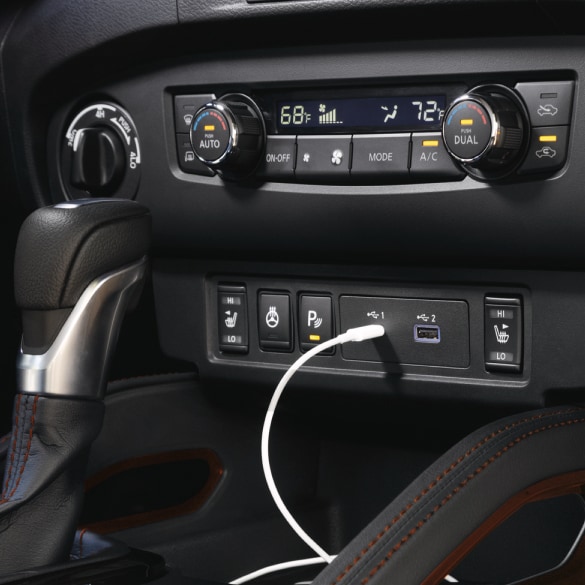
Switch on your Nissan’s infotainment system. Use the central control screen or dashboard buttons. Navigate to the Bluetooth menu or phone settings. This action puts the car in pairing mode, ready to connect with your phone.
Credit: www.nissanusa.com
Access Nissan Bluetooth Settings
Connecting your phone to Nissan Bluetooth is simple. Start by turning on Bluetooth in your car’s settings. Then, pair your phone by selecting your Nissan device from the list. Once connected, enjoy hands-free calls and music easily.
Navigate To Bluetooth Menu
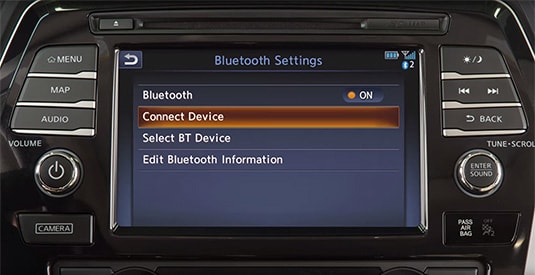
Start by turning on your Nissan’s infotainment system. Look for the “Settings” icon on the screen. Tap it gently to open the menu. Scroll down to find the “Bluetooth” option. Select it to open the Bluetooth settings. This menu controls all wireless connections with your phone.
Select Add New Device
Inside the Bluetooth menu, find and tap “Add New Device.” The system will start searching for nearby devices. Make sure your phone’s Bluetooth is also turned on and visible. Wait for your Nissan to appear on your phone’s device list. Tap your car’s name to connect. Follow any prompts to complete pairing.
Pair Your Phone With Nissan
Pairing your phone with your Nissan car is a simple step to enjoy hands-free calls and music. This connection helps you stay safe and focused on the road. Follow these easy steps to connect your phone via Bluetooth quickly.
Search For Nissan Bluetooth On Phone
Turn on Bluetooth on your phone first. Then, open the Bluetooth settings to start searching. Look for your Nissan’s name on the list of available devices. It usually shows as “Nissan” or the car model name. Select it to begin pairing.
Confirm Passkey Or Pin
A passkey or PIN will appear on both your phone and the car screen. Check that the numbers match exactly. This step ensures you connect to the right device. Tap “Pair” or “OK” on your phone to confirm.
Complete Pairing Process
Wait a few seconds for the connection to finish. Your phone will show a confirmation message once paired. The car may also display a notification. Now, you can use Bluetooth features like calls and audio streaming.
Credit: www.pinnaclenissan.com
Troubleshoot Connection Issues
Connection problems between your phone and Nissan’s Bluetooth can be frustrating. These issues stop calls and music from playing through your car. Troubleshooting helps fix these problems quickly. Follow simple steps to restore a smooth connection.
Restart Devices
Turn off your phone and your car’s system. Wait for about 30 seconds. Turn both back on. Restarting clears small errors that block Bluetooth connections. It refreshes the systems for a clean start.
Clear Previous Pairings
Too many old Bluetooth connections can cause conflicts. Open your car’s Bluetooth settings. Remove devices you do not use. Also, clear the Bluetooth list on your phone. This frees space for a new, stable connection.
Update Software
Old software can cause Bluetooth to fail. Check for updates on your phone and car system. Installing the latest updates improves compatibility. Updates fix bugs that stop Bluetooth from working well.
Manage Bluetooth Settings
Managing your Nissan car’s Bluetooth settings helps keep your connection smooth. It lets you control which device connects first. You can also change sound settings to fit your needs. Removing old devices prevents connection issues. These steps make your driving safer and easier.
Set As Primary Device
Choose your phone as the primary device in the Bluetooth menu. This setting tells your car to connect to your phone first. It saves time and avoids confusion with other devices. Open the Bluetooth list on your car’s screen. Select your phone and set it as primary or default.
Adjust Audio Preferences
Customize audio settings to get clear calls and music. Adjust volume levels for phone calls and media separately. Some Nissan models let you balance sound between speakers. Use the car’s audio menu to find these options. Clear sound improves your driving experience and safety.
Remove Paired Devices
Remove old or unused devices from your car’s Bluetooth list. This frees space for new devices and stops accidental connections. Go to the Bluetooth settings on your car’s display. Select the device you want to delete and confirm removal. Keeping your list clean helps your phone connect faster.

Credit: www.downtownnissan.com
Use Bluetooth Features Safely
Using Bluetooth features in your Nissan car adds convenience and safety. It keeps your focus on driving while staying connected. Understanding how to use these features safely is important. It helps prevent distractions and keeps you alert on the road.
Make Hands-free Calls
Hands-free calls let you talk without holding your phone. Use the car’s Bluetooth system to answer or end calls. Keep your hands on the wheel and eyes on the road. This reduces the chance of accidents caused by phone use.
Stream Music
Bluetooth lets you play music from your phone through the car speakers. Choose playlists or songs before you start driving. Avoid changing music while driving to stay focused. Enjoy your favorite tunes safely and without distraction.
Use Voice Commands
Voice commands allow you to control your phone using your voice. Ask your car to call contacts or play music. This keeps your hands free and eyes forward. Speak clearly to ensure the system understands your requests.
Frequently Asked Questions
How Do I Pair My Phone With Nissan Bluetooth?
Go to your Nissan’s Bluetooth settings. Enable Bluetooth on your phone. Select your car from the phone’s device list.
Why Won’t My Phone Connect To Nissan Bluetooth?
Check if Bluetooth is on both devices. Restart your phone and car system. Remove old paired devices that may block connection.
Can I Connect Multiple Phones To Nissan Bluetooth?
Yes, most Nissan models allow multiple phones. Only one phone can be active for calls at a time.
How To Fix Bluetooth Audio Not Playing In Nissan?
Make sure your phone is connected for media audio. Restart your phone and car system. Check volume and audio source settings.
Does Nissan Bluetooth Support Hands-free Calling?
Yes, Nissan Bluetooth supports hands-free calls. Use your car’s controls to answer or end calls safely.
How To Disconnect Phone From Nissan Bluetooth?
Access Bluetooth settings on your car or phone. Choose to disconnect or forget the device to end connection.
Conclusion
Connecting your phone to Nissan Bluetooth is simple and quick. Follow the steps carefully to avoid errors. Enjoy hands-free calls and music while driving. Stay safe by keeping your focus on the road. This easy setup improves your driving experience.
Try it today and feel the difference.
As an Amazon Associate, I earn from qualifying purchases