If you own a Nissan Rogue, you already know how important it is to stay connected while driving. But are you making the most of your Apple CarPlay feature?
Using Apple CarPlay can transform your driving experience by giving you easy access to your favorite apps, music, and navigation—all hands-free. In this guide, you’ll learn exactly how to set up and use Apple CarPlay in your Nissan Rogue, step by step.
By the end, you’ll be ready to drive smarter, safer, and more connected than ever before. Keep reading to unlock the full potential of your car’s technology.

Credit: www.youtube.com
Setup Requirements
Setting up Apple CarPlay in your Nissan Rogue is simple. You need to check a few things before starting. This ensures a smooth connection and a better driving experience. Here are the main setup requirements you should know.
Compatible Nissan Rogue Models
Apple CarPlay works with Nissan Rogue models from 2017 and newer. Some earlier models may not support it. Make sure your vehicle has the NissanConnect system. This system allows CarPlay to function properly.
Apple Device Compatibility
Apple CarPlay supports iPhones running iOS 7.1 or later. The iPhone 5 and newer models work well. Your phone must have Siri enabled for voice commands. This improves safety while driving.
Necessary Cables And Accessories
You need a Lightning to USB cable to connect your iPhone. Use an Apple-certified cable for the best result. Some Nissan Rogue models may support wireless CarPlay. Check your vehicle’s manual to see if this option is available.
Connecting Apple Carplay
Connecting Apple CarPlay to your Nissan Rogue lets you use your iPhone safely while driving. It helps with navigation, calls, messages, and music. There are two ways to connect: wired and wireless. Both methods are simple and quick to set up. Follow the steps below to start using Apple CarPlay on your Nissan Rogue.
Wired Connection Steps
First, use a certified Lightning cable. Plug one end into your iPhone. Connect the other end to the Nissan Rogue’s USB port. The USB port is usually labeled with a smartphone or CarPlay icon. Your car’s screen will show the Apple CarPlay interface. Tap “Allow” on your iPhone if asked. Now, you can control apps through the car’s touchscreen.
Wireless Connection Setup
Ensure your Nissan Rogue supports wireless CarPlay. Turn on Bluetooth and Wi-Fi on your iPhone. On the car’s display, go to the settings menu. Select “Apple CarPlay” and then “Wireless Projection.” On your iPhone, go to Settings > General > CarPlay. Choose your Nissan Rogue from the list of available cars. Follow any prompts on the car’s screen and your phone. After pairing, CarPlay will connect automatically next time.
Troubleshooting Connection Issues
If CarPlay does not connect, check your iPhone’s iOS version. Update it if needed. Restart your iPhone and the car’s infotainment system. Try a different Lightning cable for wired connections. For wireless, ensure Bluetooth and Wi-Fi are on. Forget the car on your iPhone’s CarPlay settings, then try pairing again. Reset your Nissan Rogue’s infotainment system if problems persist. These steps fix most common connection issues quickly.
Navigating The Interface
Navigating the Apple CarPlay interface in your Nissan Rogue is simple and user-friendly. It makes driving safer by keeping your focus on the road. This section guides you through the main features and how to use them with ease.
Home Screen Layout
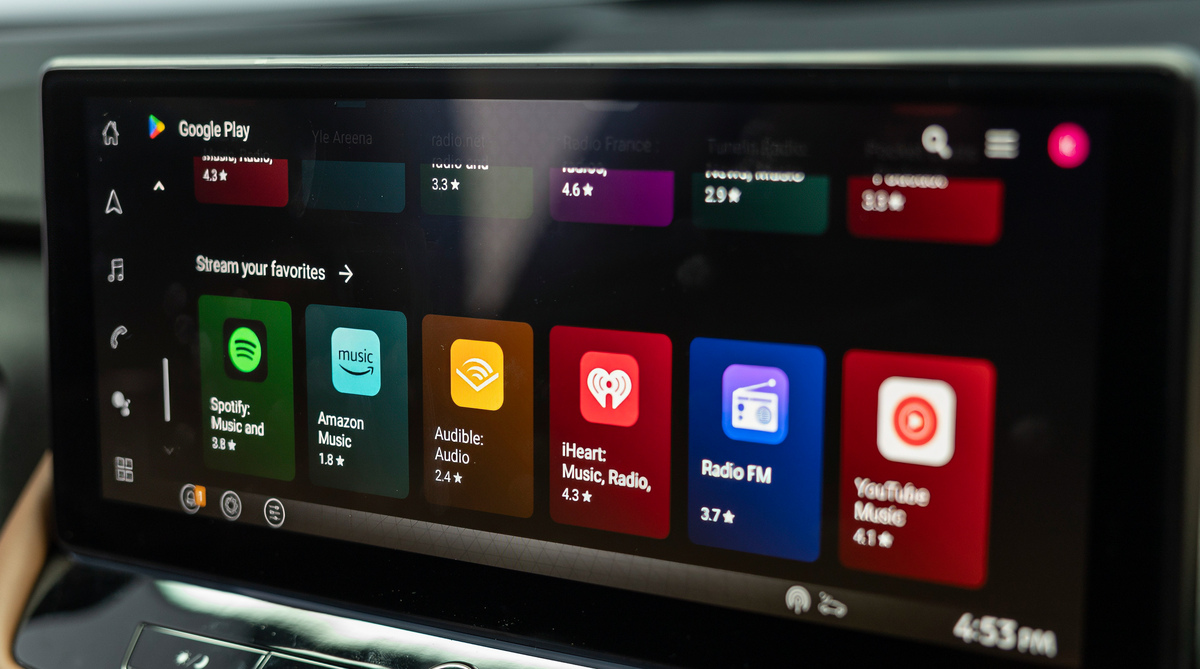
The Home Screen shows your most used apps clearly. Icons are large and easy to tap. You will see maps, music, phone, and messages on the screen. The layout is clean and not crowded. This helps you find what you need fast.
Using Siri Voice Commands
Siri lets you control CarPlay without touching the screen. Press the voice button on your steering wheel to start. Speak commands like “Call John” or “Play jazz music.” Siri listens and acts quickly. This keeps your hands on the wheel and eyes on the road.
Accessing Apps And Features
Swipe or tap to open your apps. Apple CarPlay supports many apps like maps, music, podcasts, and audiobooks. You can also check messages or get directions easily. The system updates to show the apps you use the most. This makes your drive more enjoyable and convenient.
Credit: bouldernissan.com
Customizing Carplay Settings
Customizing Apple CarPlay settings on your Nissan Rogue helps create a better driving experience. You can change how apps look and behave. This way, CarPlay fits your needs and style. Adjusting these settings is simple and quick. Spend a few minutes to make your drive more comfortable and safe.
Rearranging Apps
Change the order of apps on your CarPlay screen. Press and hold an app icon until it wiggles. Drag the app to a new spot. Place your favorite apps where they are easy to reach. This keeps your screen neat and organized. You can find what you need faster while driving.
Adjusting Notifications
Control how CarPlay shows alerts and messages. Open the Settings app on your iPhone. Tap Notifications, then select CarPlay. Choose which apps can send notifications. Turn off alerts that distract you. Keep important messages visible but quiet. This helps you stay focused on the road.
Managing Privacy Settings
Protect your personal information in CarPlay. Go to your iPhone’s Settings and tap Privacy. Review apps that have access to location, contacts, and microphone. Disable access for apps you don’t trust or need. This keeps your data safe while using CarPlay. You control what information apps can see.
Tips For Safe Use
Using Apple CarPlay in your Nissan Rogue can make driving easier and more fun. Safe use is very important. It helps you stay focused and avoid accidents. Follow these tips to keep safety first while enjoying your CarPlay features.
Minimizing Distractions
Keep your eyes on the road. Use voice commands to control CarPlay features. Avoid touching the screen while driving. Set up your apps before you start driving. Keep conversations short and clear. This helps you stay alert and focused.
Using Do Not Disturb Mode
Turn on Do Not Disturb while driving. It stops calls and messages from popping up. This reduces distractions from your phone. You can still hear important alerts through CarPlay. Use this mode to keep your drive calm and safe.
Keeping Software Updated
Regularly update your iPhone and Nissan Rogue system. Updates fix bugs and improve safety features. Updated software helps CarPlay run smoothly. Check for updates often to avoid problems. Staying current keeps your driving experience safe and reliable.
Common Issues And Fixes
Using Apple CarPlay in your Nissan Rogue makes driving simpler and safer. Still, you might face some common issues. These problems can interrupt your experience but are often easy to fix. Understanding these issues helps you keep your CarPlay running smoothly.
Carplay Not Connecting
CarPlay may fail to connect for many reasons. Check your iPhone’s USB cable for damage. Try using a different cable. Restart your iPhone and the car’s infotainment system. Ensure CarPlay is enabled in your iPhone’s settings. Also, make sure your Nissan Rogue is in park before connecting.
Audio Problems
Audio issues can make calls or music hard to hear. Adjust the volume on both your car and iPhone. Check that your Bluetooth or USB connection is stable. Try disconnecting and reconnecting CarPlay. Also, verify the mute button is off and audio output is set correctly.
App Crashes Or Freezes
Apps may crash or freeze during use. Close the app and reopen it. Restart your iPhone if the problem continues. Keep your iPhone’s iOS updated to the latest version. Remove any apps causing issues and reinstall them. This can improve app performance on CarPlay.

Credit: www.youtube.com
Frequently Asked Questions
How Do I Connect Apple Carplay To Nissan Rogue?
Use a certified Lightning cable to plug your iPhone into the Rogue’s USB port labeled with a smartphone icon.
Can I Use Wireless Apple Carplay In Nissan Rogue?
Wireless Apple CarPlay is not available in most Nissan Rogue models; a wired connection is needed.
What Nissan Rogue Models Support Apple Carplay?
Nissan Rogue models from 2017 and newer usually support Apple CarPlay with the right infotainment system.
How To Activate Apple Carplay On Nissan Rogue Screen?
After connecting your iPhone, tap the CarPlay icon on the Rogue’s touchscreen to start using it.
Can I Use Siri With Apple Carplay In Nissan Rogue?
Yes, press and hold the voice control button on the steering wheel to use Siri hands-free.
What Apps Can I Use With Apple Carplay In Nissan Rogue?
You can access Maps, Messages, Phone, Music, Podcasts, and many third-party apps safely while driving.
Conclusion
Using Apple CarPlay on your Nissan Rogue is simple and useful. It helps you stay connected and focused on driving. Just follow the easy steps to set it up. Enjoy music, maps, and calls safely. This feature makes your drive more fun and less stressful.
Try it during your next trip and see the difference. Stay safe, stay connected.
As an Amazon Associate, I earn from qualifying purchases