
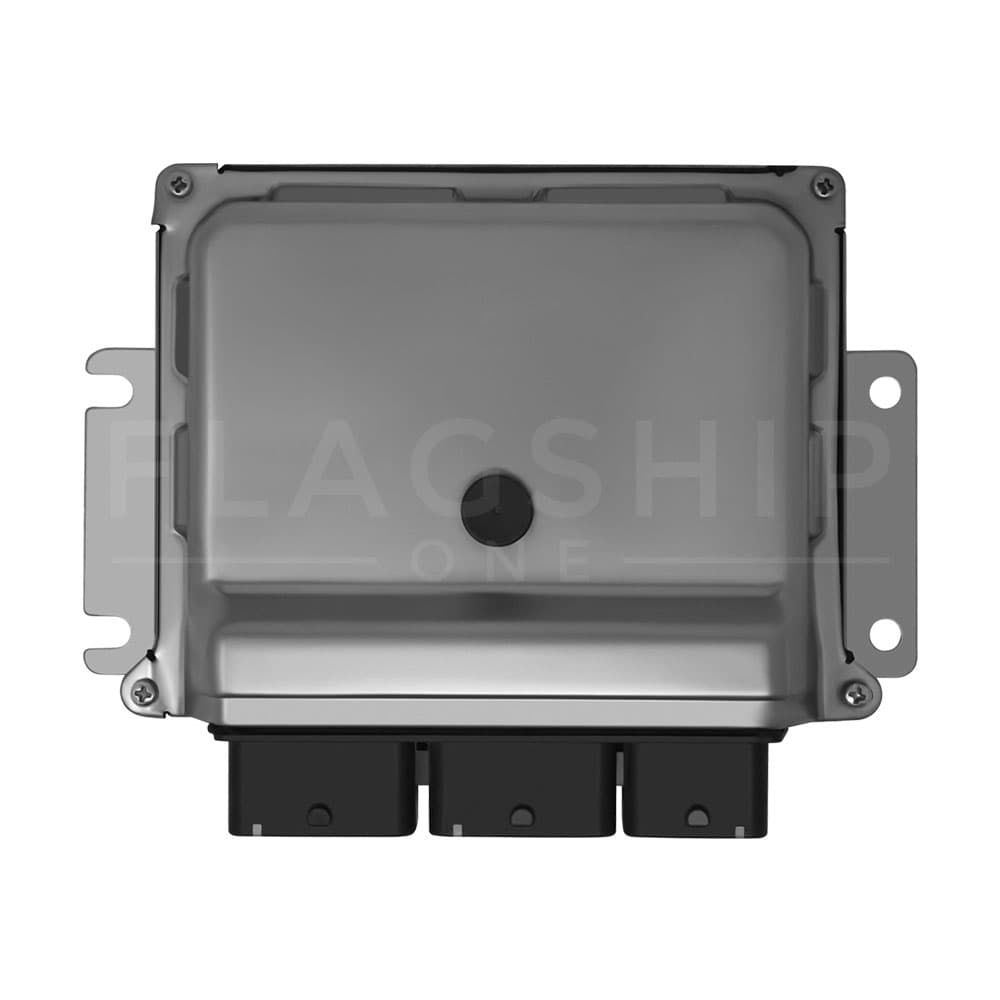
Is your Nissan Altima acting up or showing warning lights on the dashboard? Sometimes, the problem isn’t mechanical but related to your car’s computer system.
Knowing how to reset your Nissan Altima’s computer can save you time, money, and frustration. In this guide, you’ll discover simple, step-by-step methods to reset your car’s computer quickly and safely. Keep reading to regain control over your vehicle’s performance and get back on the road with confidence.
Reasons To Reset Your Nissan Altima Computer
Resetting the computer in your Nissan Altima can solve many car troubles. The car’s computer controls many parts of the vehicle. Sometimes, it needs a reset to work right again. Knowing the reasons to reset helps you decide when to try it. This step can fix small issues without costly repairs.
Common Issues Requiring A Reset
The check engine light often signals a problem. It may stay on due to a simple error. Resetting the computer can clear false warnings. Poor fuel economy might also mean the computer needs a reset. The engine may run rough or stall. Sometimes, sensors send wrong data that confuse the car’s system. A reset can fix these sensor errors. Transmission shifting problems can also improve after a reset. These issues often indicate the computer needs a fresh start.
Benefits Of Resetting The Computer
Resetting can restore the car’s performance. It helps the engine run smoother and use less fuel. Clearing error codes can stop the check engine light. This saves time at the mechanic for minor issues. A reset can improve the car’s responsiveness and power. It also helps the car’s sensors recalibrate. This keeps the vehicle working at its best. Resetting is a simple step that can prevent bigger problems.
Credit: www.fs1inc.com
Tools Needed For The Reset
Resetting the Nissan Altima computer requires some basic tools. These tools help you perform the reset safely and effectively. Having the right items ready will make the process smooth and quick.
Essential Tools
You need a few simple tools for the reset. A wrench or socket set helps to remove the car battery terminal. A pair of gloves protects your hands from dirt and sharp parts. A memory saver device is useful to keep your car settings safe during the reset. Lastly, a flashlight can help if you work in a dark area.
Safety Precautions
Always wear gloves before starting. Disconnect the negative battery terminal first to avoid sparks. Keep metal tools away from the battery terminals. Work in a well-ventilated space to avoid breathing harmful gases. Never touch both battery terminals at the same time with a tool. These steps keep you safe and protect your vehicle’s electronics.
Step-by-step Reset Process
Resetting the Nissan Altima computer helps clear error codes and fix minor issues. Follow this step-by-step process carefully. Each step is simple and important. Do not rush.
Disconnecting The Battery
Open the hood and find the car battery. Use a wrench to loosen the negative terminal first. Remove the cable from the battery. This stops power flow to the computer. It prevents any electrical damage during the reset.
Waiting Period
Leave the battery disconnected for 15 to 30 minutes. This time allows the car’s computer to clear stored data. Do not touch any wires or terminals during this wait. Patience is key for a proper reset.
Reconnecting The Battery
After waiting, reconnect the negative battery cable. Tighten it securely with the wrench. Make sure the connection is firm. A loose connection can cause more electrical problems.
Starting The Engine
Close the hood and get inside the car. Turn the key to start the engine. The computer will now restart fresh. Watch for any warning lights on the dashboard. If lights stay off, the reset worked well.
Using The Obd-ii Scanner
Using an OBD-II scanner is a straightforward way to reset your Nissan Altima’s computer. This tool reads and clears error codes from the car’s system. It helps fix warning lights on the dashboard and improves vehicle performance. Anyone can use this device with basic guidance.
Before starting, ensure the car is turned off. You need to find the right port and connect the scanner properly. Then, follow simple steps to clear the codes safely. This method saves time and avoids unnecessary trips to the mechanic.
Locating The Obd-ii Port
The OBD-II port is usually under the dashboard on the driver’s side. Look near the steering column or below the fuse box area. It is a small, rectangular connector with 16 pins. You may need to move a cover or panel to see it clearly.
Check your Nissan Altima’s manual if you have trouble finding the port. The scanner must be plugged directly into this port to work. Avoid forcing the plug to prevent damage.
Clearing Codes With The Scanner
Connect the scanner to the OBD-II port with the car off. Turn on the ignition without starting the engine. The scanner will power up and communicate with the car’s computer. Follow the scanner’s menu to read the error codes first.
After noting the codes, select the option to clear or erase them. The scanner will reset the computer and turn off warning lights. Turn off the ignition and remove the scanner. Start the car to check if the reset worked.
Repeat the process if the warning lights return. Persistent issues may need professional attention. Using an OBD-II scanner is a simple way to keep your Nissan Altima running smoothly.
After Reset Maintenance Tips
Resetting your Nissan Altima’s computer helps clear error codes and resets the system. After a reset, certain steps help keep your car running smoothly. These maintenance tips ensure the engine and other parts work well. Follow these guidelines to keep your vehicle in good shape.
Monitoring Engine Performance
After the reset, watch how the engine runs every day. Pay attention to any unusual sounds or vibrations. Check if the car starts easily and runs smoothly. Notice any warning lights on the dashboard. Track fuel efficiency and acceleration. Early signs of trouble often appear in these areas. Keeping an eye helps catch problems before they worsen.
When To Seek Professional Help
Some issues need a mechanic’s attention right away. If the check engine light stays on or flashes, get help. Strange noises or poor engine response also signal problems. Sudden drops in fuel efficiency require a professional check. If the car stalls or hesitates, don’t delay service. A trained technician can diagnose and fix hidden faults. Trust experts to keep your Altima safe and reliable.
Credit: www.fs1inc.com

Credit: www.youtube.com
Frequently Asked Questions
How Do I Reset The Nissan Altima Computer?
Disconnect the negative battery cable for 15 minutes, then reconnect it to reset the computer.
Can Resetting The Computer Fix Engine Problems?
Yes, it can clear minor errors and reset the engine light.
Will Resetting Erase My Radio Or Settings?
Yes, some settings like radio presets may reset and need reprogramming.
How Long Does The Nissan Altima Computer Reset Take?
The reset process takes about 15 to 20 minutes including waiting time.
Do I Need Special Tools To Reset The Computer?
No special tools are needed; just a wrench to disconnect the battery.
How Often Should I Reset My Nissan Altima Computer?
Reset only when troubleshooting issues or after repairs to clear error codes.
Conclusion
Resetting your Nissan Altima’s computer helps fix small issues fast. Follow each step carefully to avoid mistakes. This simple process can clear error codes and improve performance. Keep your car’s manual handy for extra help. Regular resets may keep your vehicle running smoothly.
Try this method before visiting a mechanic. Stay safe and take your time. Your Altima will thank you for the care.
As an Amazon Associate, I earn from qualifying purchases